
I used an AI coding agent to build and install a custom home screen on my Samsung TV over the home network. There was no HDMI or USB cable between the TV and computer.
I enabled Developer Mode, described the design, and tested with the remote. The agent inspected the TV, edited the launcher, signed it, and installed each revision. Dot Home now opens to an ocean of dots, my app list, and no advertising feed in the launcher.
The visual direction came from my fond memories of Assassin’s Creed loading screens. I wanted to bring that dark, floating feeling into a home screen I use every day.
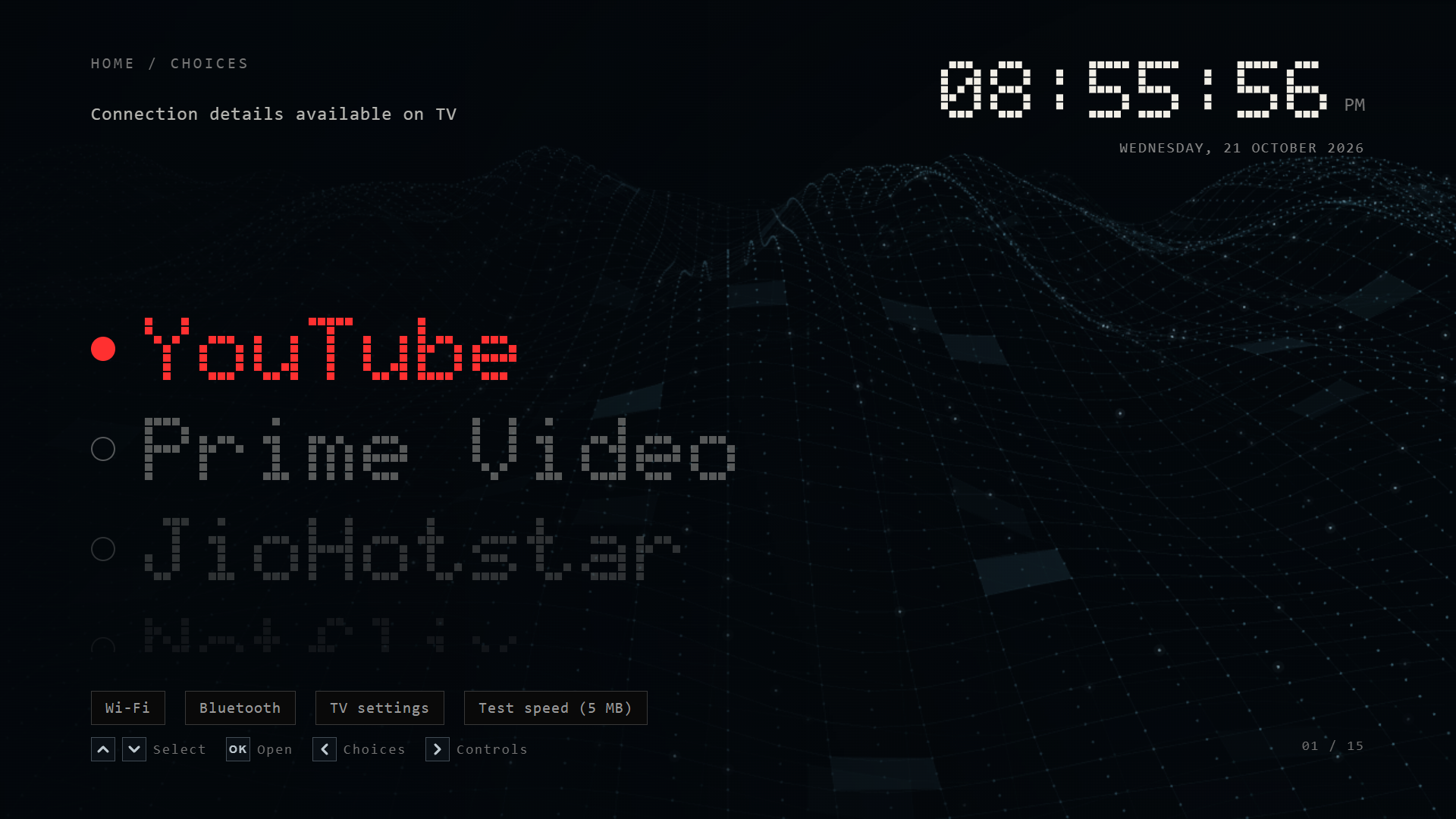
Browser preview of the launcher code. TV-only connection values are not populated in this capture. This is not a photograph of the panel.
The technical companion covers the model checks, native Home routing, package inventory, and service maintenance. This article explains the choices and the mistakes that shaped the result.
The TV I actually changed
This was a 55-inch Samsung Crystal UHD, model UA55UE84AFULXL. It ran Tizen 9.0 and firmware T-KSU2EFUABC-0090-1300.9.
The model matters. A working command on another Samsung TV does not prove it will work here. Even a firmware update can change the assumptions.
I wanted a short path from turning on the screen to choosing something. I also wanted the useful TV controls nearby.
That meant keeping native streaming apps, HDMI inputs, Wi-Fi, Bluetooth, settings, and SmartThings. Removing Samsung Home itself was unnecessary. It remains available as a deliberate choice and a recovery route.
The custom launcher is called Dot Home. It builds on AeroTizen. The native Home work also used ideas from arn0-tv, adapted to this firmware. Root access on my TV used samsung-tv-root.
My work was the custom visual design, launcher changes, firmware-specific integration, and repeated testing. Those upstream projects deserve credit for the foundations.
A screen built around the remote
The main list starts with YouTube, Prime Video, JioHotstar, Netflix, Apple TV, and SonyLIV. Spotify and a YouTube Music shortcut follow.
The selected app stays at a fixed point on the screen. The other rows move around it and fade with distance. That keeps the next action easy to find from the sofa.
I tried a large app logo on the right. It made the screen feel busier without making selection easier. I removed it and increased the left-side pixel lettering from 78 to 84 pixels.
The app colors do useful work. YouTube is red, Prime is blue, Hotstar is purple, and Spotify is green. The background stays quiet enough for these colors to remain readable.
| App | Selection color |
|---|---|
| YouTube | #ff3030 |
| Prime Video | #209af4 |
| JioHotstar | #b28bff |
| Netflix | #ef1024 |
| Apple TV and other neutral entries | #ededeb |
| SonyLIV | #ffdc59 |
| Spotify | #1cda85 |
The lettering is drawn from a small matrix of cells. It does not need a downloaded display font. The same treatment ties together the clock, selected labels, and app transition.
The clock shows hours, minutes, and seconds with two digits in each field. I tried a train departure board flip, then removed it because the simpler digit change looked better. The date includes the weekday and year.
The ocean should move without demanding attention
The background began as a diagonal mesh viewed from a corner. The current version uses a wider ocean surface, with distant ridges opening into the foreground. It keeps the dots and faint connecting lines.
I tried several descriptions before the geometry matched what I wanted. A straight dotted sheet looked too flat. A block-based direction came up briefly, then I dropped it. The flat mesh kept the screen lighter.
I tried three overlapping layers, then reduced them when the motion felt choppy. The current design has two independent waves. The weaker teal layer travels at a different speed and direction from the blue one. The mesh extends beyond the lower edge, so the screen does not reveal its rectangular boundary.
Small squares brighten slowly. Individual dots also catch brief glints as the surface moves. Each layer now has 72 square highlights and 160 dot glints allocated, twice the previous count. They fade at different times, so these counts do not mean every highlight is visible at once.
The updated renderer targets 60 frames per second, with a backing canvas capped at 1280 pixels wide. It caches spatial geometry, skips off-screen calculations, and batches the highlights by brightness. That is a rendering target, not a measured TV frame rate. The wave pauses when the page is hidden, when editing, during an input view, and under the app cover.
Reduced-motion preferences stop the animated background and remove the launch motion. A pretty home screen should not require constant movement.
17.9-second browser recording of version 2.0.18 at 1920 × 1080 and 60 fps. The black loading screen, spinner, and Back icon simulate a native app handoff. This is not TV footage or a measurement of app loading time. TV-only values are not populated.
The app name becomes the transition
Selecting Prime Video used to feel like separate screens colliding. The home disappeared, a dark cover appeared, and then the native app opened.
The fix reused the selected label. Its pixel artwork moves into the launch position while a blue wash grows across the right side. The wash softens into black on the left, where the label stays readable.

Browser capture of the launcher-owned Prime Video transition. The TV controls the final handoff into the native app.
The cover lasts 460 milliseconds before the launch request. Returning reverses the label movement and color wash. It feels connected because the app name is the same visual object throughout.
One return bug survived the first version. The list reset while the app cover was still active, so the label could travel toward the wrong row. I changed the visibility handler to preserve the original selection during the return. Back now restores that row. A physical Home action still takes the list to YouTube after the transition.
The new recording shows the sequence clearly: app-colored page, black screen with a central spinner, central Back icon, app-colored page again, then the label moves into its original row. The simulator has no “Back to Dot Home” button on screen. Samsung controls the actual native app screens.
The difficult part was timing. A hidden web page can resume with an old timeout ready to run. That timeout could remove the cover before the return animation finished.
I canceled hidden timers on visibility changes and kept the return cover alive until its animation completed. The launcher controls its own frames. Samsung still controls the native app’s first frame, so I cannot promise an identical handoff for every app.
Smooth scrolling was mostly an input problem
At one point, one Up press from Apple TV passed Netflix and landed on JioHotstar. The animation made it look like a bounce problem.
It was a repeat problem. A synthetic timer started generating extra movements after 260 milliseconds. A human press could last long enough to trigger it.
The final input rule is simple:
First keydown: move one item.
More movement: require actual repeated keydown events.
Held-repeat threshold: 450 milliseconds.
Minimum gap between accepted repeats: 65 milliseconds.
Key release: stop; do not select another item.
Late repeat events received after release are ignored. A single press now changes one logical selection. The visual interpolation can finish separately.
Another attempt moved the entire list slightly on every step. That looked like a wobble. I kept the ordinary row transition and reserved the bounce for fast arrival at the top or bottom.
This was a useful distinction: smooth movement should follow a correct selection. It should not decide the selection.
Pressing Home while already in the launcher also returns the list to YouTube. It moves through the intervening positions with easing instead of jumping the entire list at once.
Making Home mean Dot Home
The biggest change was below the interface.
An ordinary TV web app can draw a home screen. That alone does not make it the destination of the physical Home button.
The first native startup test succeeded, but Home inside Prime Video left Prime open. Changing the default Home assignment was only part of the fix.
The launcher also needed to register Tizen’s main application-control operation in its manifest. That allowed the system to deliver the Home action to the app. Dot Home could then handle the foreground event and return to its first item.
After that change, I tested Home from Prime Video with the physical remote. It returned to Dot Home. The updated launcher also appeared automatically on three restart tests without a computer sending an app-launch command.
Those were restart tests, sometimes with a wake packet after the TV stayed offline. They do not prove every unplugged cold-start or future firmware scenario.
The older watcher approach polled app state and could force screen changes. I removed that polling. Its remaining local service only acknowledges launch coordination requests.
Samsung Home still works when explicitly launched. The old link exited Dot Home, which immediately brought us back through the new Home route. Launching Samsung Home directly fixed that loop.
Controls that explain their values
The first status line squeezed too much into one string. Slashes separated Wi-Fi, Bluetooth, storage, and a vague memory message.
I changed it to labeled values with middle-dot separators. Wi-Fi has a name and a signal reading, plus a four-bar indicator. The home screen masks the IP address. The detail panel can show the actual address when needed.
The RAM display reads used and total memory from the TV system API. It includes a meter and an explicit fallback when the read is unavailable. I removed the implication that a status label could prove memory was “optimized.”
The speed test starts only when selected. It downloads about 5 MB from Cloudflare’s speed test endpoint. That is a download sample, including request overhead, rather than a full diagnosis of the home connection.
Bluetooth, Wi-Fi, and TV settings open the relevant controls. I tested side-to-side selection and the control actions on the TV. I did not turn that observation into a claim that every Bluetooth profile or device was tested.
Adding apps and naming inputs
The old app picker was too similar to the main screen. Its white chips also looked disconnected from the rest of the design.
The replacement uses a dark, two-column library. Installed apps have clear Add or On Home states. The current position appears where useful. Clock, date, and input choices use the same dark controls.
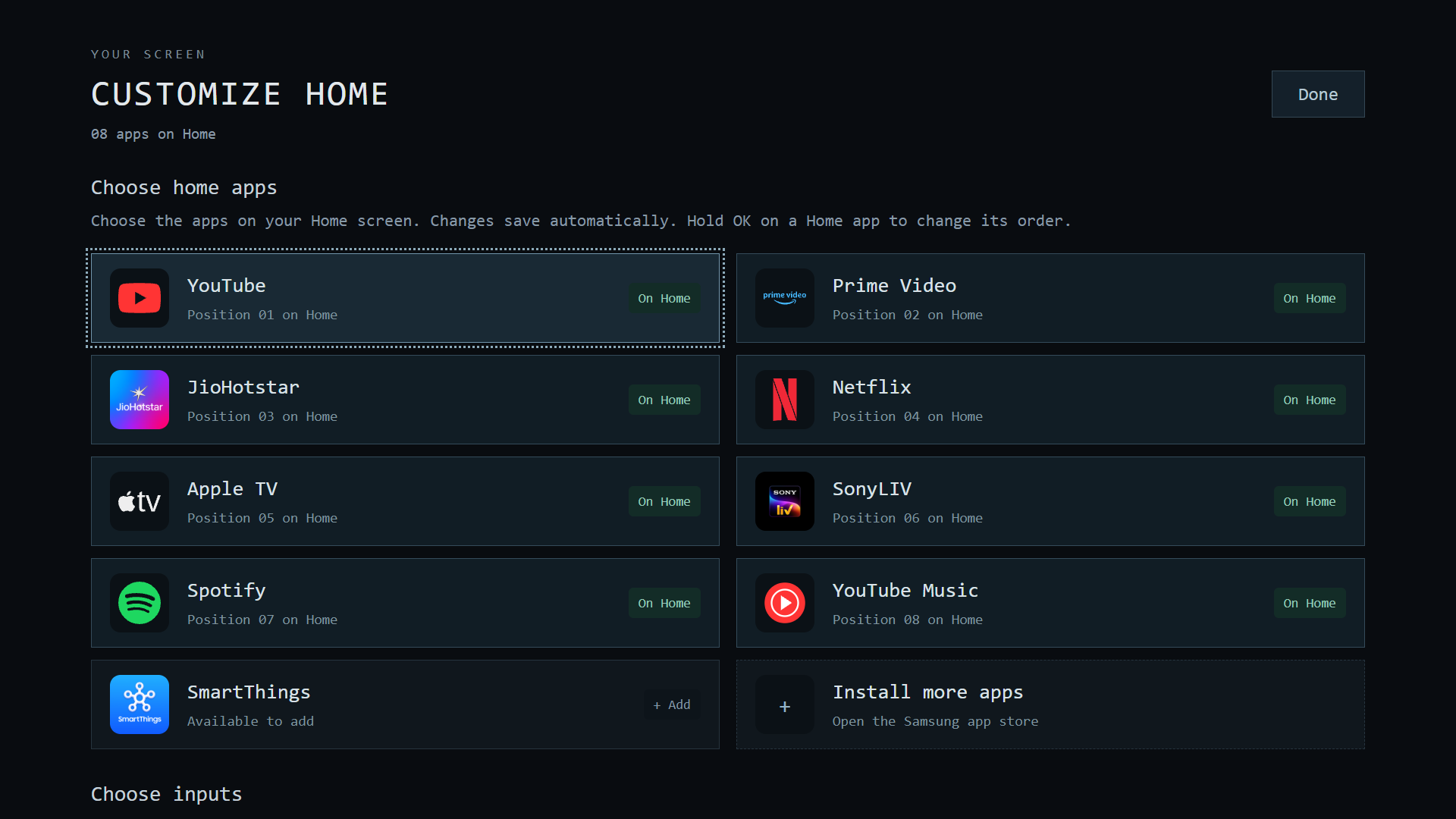
Browser preview of Customize Home. Installation still happens through the TV’s app store; this picker controls the launcher list.
I fixed ambiguous branding too. JioHotstar and SmartThings should not share a generic-looking icon. Spotify should use its recognizable green mark. Brand marks remain their owners’ property.
The library discovers installed apps. Adding an app to Home does not install it. Install an available app through Samsung Apps, reopen the library, and choose Add.
The same editor can show or hide HDMI inputs and save friendly names. “Console” is easier to recognize than remembering a port number. These names affect the launcher presentation.
Spotify was already installed, so the work added its entry and tested a launch. YouTube Music is a shortcut into YouTube, where the Music section is available. It is not a separate native YouTube Music app.
Changing the app order required care. The requested order is applied as a one-time migration. Later edits stay under my control instead of being overwritten whenever Dot Home starts.
What the cleanup changed
The cleanup disabled 45 selected optional package registrations. It also stopped eight optional services and applied six runtime service masks.
The targets included advertising components, content recognition, analytics, promotion surfaces, Bixby and voice extras, Gaming Hub, Health, and Ambient extras. Disabling voice components also removes related voice features. This was an intentional tradeoff on this TV.
The launcher itself has no advertising feed or recommendation carousel. That is the precise meaning of the quieter, ad-free home here. Native streaming apps keep their own advertising, subscriptions, and behavior.
Packages were disabled, not deleted. I have no measured storage recovery to report. I also did not collect a controlled RAM baseline or per-service traffic counters before the cleanup.
| Result | What I can support |
|---|---|
| Disabled package targets | 45 verified after maintenance |
| Selected service targets inactive | 14 verified after maintenance |
| RAM saved | Not measured |
| Storage recovered | Not measured; package files remain |
| Internet used by each target | Not measured |
| Launcher advertising feed | None implemented |
| Native streaming playback and DRM | Not validated by this project |
The complete identifiers are in the technical article. They are a record of this build, not a recommended blocklist for every Samsung TV.
One part still needs the computer
The native Home assignment and launcher startup work independently of the computer. Some cleanup state does not.
Six service masks live in the TV’s runtime directory and disappear after restart. Testing also found that 29 selected packages could become enabled again. The available evidence did not isolate the exact trigger.
A Windows helper now checks the same 45-package allowlist after the TV returns online. It reapplies the six masks and stops the eight optional services. It then reads back the state.
The computer must remain awake, signed in, and on the home network for that maintenance. Calling this “permanent debloat with no dependencies” would hide a real limitation.
I kept this distinction visible because a successful home screen can disguise a failed background maintenance run. The helper records its last verified result separately.
How the work actually happened
This was an iterative session with an AI coding agent. I described the screen, used the physical remote, and reported what happened. The agent inspected code, changed the launcher, ran checks, and installed signed revisions.
Local browser tests caught layout and input regressions quickly. Device queries checked package flags, service states, visibility, and Home settings. Photos and physical remote feedback supplied evidence that the browser could not.
I did not have a working live inspector for the already-running TV app. A failed inspector attempt is not the same as debugging the live TV through Chrome. The browser preview was a separate test surface.
The initial signed artifact window runs from 14:39 for version 2.0.0 to 18:01 for version 2.0.12 on 21 October 2026. That is 3 hours and 22 minutes. Earlier research and root setup sit outside that window. The later recording, return-animation fixes, and ocean and clock revisions continued through version 2.0.18. The first window does not include that later work.
So yes, much of the work was looking, changing, testing, and looking again. But each failure needed a smaller question. Did the selection change twice? Did the system deliver Home? Did a service restart? Those questions produced better fixes than adding another animation.
The source notes and engineering record keep the reproducible details together. Credentials, personal device identifiers, and raw private logs are excluded.
The next test I would add is a controlled before-and-after measurement session. Until then, the useful result is specific: my chosen apps, working Home behavior, direct controls, and a screen I like looking at.
Want help with your TV skin? Email me for guidance or a custom setup. We can agree on a small fee before work starts.